Recently a reader asked me a question about a missing codec error while using ffmpeg to convert a video.
Here's the error message;
It seems your FFMPEG (libavcodec) installation lacks the following encoder:
MPEG AAC Audio.
I initially told him to make sure he has the AAC audio codec installed. Then I tried a conversion and got a similar message. I know I had everything installed so it was time to investigate.
Didn't take me long to find out that the ffmpeg including the unstripped version from the restricted repo's is lacking certain codecs due to licensing B.S.
So what do we do?
I read many articles talking about compiling your own ffmpeg with the missing codecs. Now I'm not against doing that but I was hoping for something easier. LOL!
Then I found this page;
http://ubuntuforums.org/showthread.php?t=1117283
It has a comprehensive tutorial on how to compile your own ffmpeg.
And it also contains a quick 2 copy and paste terminal commands that will download and install the unstripped ffmpeg.
Just make sure that you pick your correct version of Ubuntu when using either option.
Many thanks to FakeOutdoorsman for his excellent tutorial on fixing this.
Linux!
There are so many ways around the B.S!
Enjoy!
Showing posts with label Video. Show all posts
Showing posts with label Video. Show all posts
Monday, May 31, 2010


Thursday, December 11, 2008
The Website Is Down - A Humorous Look At......
OMG!! The Website Is Down!!!
Well, not really but the website at http://www.thewebsiteisdown.com/
provides a humorous look into the life of a lowly tech support guy and his innovative techniques used in damage control.
It's a fairly large video but worth every byte of bandwidth.
The voices remind me of the characters from South Park and add to the video.
Afterwards you can browse the extras like playing on the Sales Guy's computer.
So kick back, lighten up and enjoy the show!
Don't reboot the server!
LOL!!
Well, not really but the website at http://www.thewebsiteisdown.com/
provides a humorous look into the life of a lowly tech support guy and his innovative techniques used in damage control.
It's a fairly large video but worth every byte of bandwidth.
The voices remind me of the characters from South Park and add to the video.
Afterwards you can browse the extras like playing on the Sales Guy's computer.
So kick back, lighten up and enjoy the show!
Don't reboot the server!
LOL!!
Sunday, November 30, 2008
New Video Converting And Audio Ripping Tool With GUI
A new tool called WinFF does a great job of converting videos and ripping audio from videos. It is available in .deb packages, exe for Windows, RPM's for Red Hat and source code for other OS's.
Since I updated to Ibex and have the newest VLC, I have encountered a serious problem when converting videos. That problem being that I have no audio.
My previous tutorial on how to convert videos is now confined to VLC version 0.8.6
I'm not really sure whether the audio problem is with VLC or with the ffmpeg codec. There are many posts saying that due to patent conflicts, ffmeg no longer supports ac3 or mp3 audio streams. I can't verify that info at this time.
My feeling is that the problem is a bug in VLC.
WinFF however solves this problem, makes it much easier to convert a video, offers many more formats and rips audio with a few clicks.
The GUI is intuitive. It's only a matter of choosing what video you want to convert, what format you want it in and where to save it.
And the list of presets is extensive. It offers the user a choice that will suit almost every need.
The presets are as follows;
Audio formats include Mp3, m4a, Ac3, Wav and WMA
AVI including MS compatible, Xvid 4:3 and 16:9
Creative Zen in Xvid 4:3 and 16:9
DV in Raw DV 4:3 and 16:9
DVD that includes almost every format in Pal and NTSC
iPod formats in Xvid and H.264
Mobile Phones in the 3g2 and Blackberry formats
Mp4 uses the H.264 format
Other presets include formats in the Palm, PSP, Quicktime, Rockbox, VCD, FLV and WMV
As you can see, this provides you with plenty of options.
And it also rips and converts audio!!
Of course you will need all the extra codecs to access all the features.
Ubuntu users can get those codecs from Medibuntu.
Windows users can check out the packages at Free-Codecs.
Where do I get it from?
I'll give you some links that you can check out and download it from.
The creator's blog can be found here;
BiggMatt
Stop by and post a thanks for this handy tool.
Deb packages can be downloaded from this page;
WinFF .deb Downloads
Click on the arrow next to winff-0.43 to expand it then select the .deb package for either the !386 or the AMD64 depending what platform you are using.
The download page for OS's other then Ubuntu or .deb packages can be found here;
Winff Non-Deb
This is where you will find the exe, rpm and source packages.
I am very impressed with this tool and want to thank BiggMatt for all his hard work in providing the community with a very handy tool.
Enjoy!
TaZMAn
Since I updated to Ibex and have the newest VLC, I have encountered a serious problem when converting videos. That problem being that I have no audio.
My previous tutorial on how to convert videos is now confined to VLC version 0.8.6
I'm not really sure whether the audio problem is with VLC or with the ffmpeg codec. There are many posts saying that due to patent conflicts, ffmeg no longer supports ac3 or mp3 audio streams. I can't verify that info at this time.
My feeling is that the problem is a bug in VLC.
WinFF however solves this problem, makes it much easier to convert a video, offers many more formats and rips audio with a few clicks.
The GUI is intuitive. It's only a matter of choosing what video you want to convert, what format you want it in and where to save it.
And the list of presets is extensive. It offers the user a choice that will suit almost every need.
The presets are as follows;
Audio formats include Mp3, m4a, Ac3, Wav and WMA
AVI including MS compatible, Xvid 4:3 and 16:9
Creative Zen in Xvid 4:3 and 16:9
DV in Raw DV 4:3 and 16:9
DVD that includes almost every format in Pal and NTSC
iPod formats in Xvid and H.264
Mobile Phones in the 3g2 and Blackberry formats
Mp4 uses the H.264 format
Other presets include formats in the Palm, PSP, Quicktime, Rockbox, VCD, FLV and WMV
As you can see, this provides you with plenty of options.
And it also rips and converts audio!!
Of course you will need all the extra codecs to access all the features.
Ubuntu users can get those codecs from Medibuntu.
Windows users can check out the packages at Free-Codecs.
Where do I get it from?
I'll give you some links that you can check out and download it from.
The creator's blog can be found here;
BiggMatt
Stop by and post a thanks for this handy tool.
Deb packages can be downloaded from this page;
WinFF .deb Downloads
Click on the arrow next to winff-0.43 to expand it then select the .deb package for either the !386 or the AMD64 depending what platform you are using.
The download page for OS's other then Ubuntu or .deb packages can be found here;
Winff Non-Deb
This is where you will find the exe, rpm and source packages.
I am very impressed with this tool and want to thank BiggMatt for all his hard work in providing the community with a very handy tool.
Enjoy!
TaZMAn
Sunday, November 23, 2008
Create A Slide Show Video From Your Pictures
Update!
Manslide has a new name. It is now called Smile.
The Smile .deb package can be downloaded from here;
Smile .deb Package Download
There is also a good Smile How-to in the forums found here;
Smile How-To
While essentially the same as Manslide, it adds a few new features and a new GUI but also removed one or two transition effects from the menu.
I also had it lock up on me once. I imagine that since they redesigned it, they still have a few bugs to iron out.
The older Manslide package does not work properly in Ibex due to window display conflicts. The rest of the older article below is still useful for the newer Smile software.
Smile will add a menu entry in the Graphics section.
Manslide is a program that will take your pictures, create a slide show from them and export it to a mpg video file using the mpgv codec.
It has a very easy to use graphical interface.
You select the pictures you want to include in the slideshow.
Then you set the amount of time you want the picture to be displayed.
It even has an effects package that gives you several transitional effects for the picture's entry onto the screen.
Finally it also includes the ability to add an audio track.
This software will be very useful for the photographer who wants to make a video disk to show others their pictures.
Use it to make a presentation video or a recreation of your vacation.
Take the mpeg video it creates and convert it to a DVD format then burn it. Now you have a universal media for play on any DVD player.
There doesn't seem to be an official home page for this project right now but I did find this page that seems to have the most updated info;
Manslide at GetDeb
http://www.getdeb.net/app/ManSlide
Ubuntu users can get this software through the Synaptic Package Manager.
Do a search for manslide and select the manslide package and the manslide-effects for the transition effects used in Manslide.
I know a former Windows user that tried making a video slide show in Windows that didn't turn out very well. I'm sure this package will work much better for him. :-)
Enjoy!
TaZMAn
Manslide has a new name. It is now called Smile.
The Smile .deb package can be downloaded from here;
Smile .deb Package Download
There is also a good Smile How-to in the forums found here;
Smile How-To
While essentially the same as Manslide, it adds a few new features and a new GUI but also removed one or two transition effects from the menu.
I also had it lock up on me once. I imagine that since they redesigned it, they still have a few bugs to iron out.
The older Manslide package does not work properly in Ibex due to window display conflicts. The rest of the older article below is still useful for the newer Smile software.
Smile will add a menu entry in the Graphics section.
Manslide is a program that will take your pictures, create a slide show from them and export it to a mpg video file using the mpgv codec.
It has a very easy to use graphical interface.
You select the pictures you want to include in the slideshow.
Then you set the amount of time you want the picture to be displayed.
It even has an effects package that gives you several transitional effects for the picture's entry onto the screen.
Finally it also includes the ability to add an audio track.
This software will be very useful for the photographer who wants to make a video disk to show others their pictures.
Use it to make a presentation video or a recreation of your vacation.
Take the mpeg video it creates and convert it to a DVD format then burn it. Now you have a universal media for play on any DVD player.
There doesn't seem to be an official home page for this project right now but I did find this page that seems to have the most updated info;
Manslide at GetDeb
http://www.getdeb.net/app/ManSlide
Ubuntu users can get this software through the Synaptic Package Manager.
Do a search for manslide and select the manslide package and the manslide-effects for the transition effects used in Manslide.
I know a former Windows user that tried making a video slide show in Windows that didn't turn out very well. I'm sure this package will work much better for him. :-)
Enjoy!
TaZMAn
Tuesday, October 28, 2008
Convert Video With VLC
UPDATE!
There is a new easy to use tool that converts Videos and rips Audio.
It can be found in my blog here;
WinFF Blog Post
In one of my previous blog entries from May, I showed you how to extract audio from a video using VLC.
Now I will show you how to convert videos from one format to another.
Convert avi, DVD vob's, flv, ogg, wmv, divx, mpeg or mp4 for your iPod to any format just mentioned.
And it an easy process that only takes a few minutes to master and doesn't require the installing of several programs. The only thing you need is vlc and the needed codecs installed.
Ready? Let's go!
For you to be able to convert between all the different video formats requires you to have the following codecs installed.
First go to Medibuntu and follow the directions to install the non-free codecs. Here is the link to Medibuntu;
https://help.ubuntu.com/community/Medibuntu
Now from the Synaptic package manager make sure you have the following installed;
gstreamer0.10-plugins-ugly
gstreamer0.10-plugins-ugly-multiverse
gstreamer0.10-plugins-bad
gstreamer0.10-plugins-bad-multiverse
gstreamer0.10-ffmpeg
ffmpeg2theora
All the libavcodec files, w32codecs and all the libdivx files for decoding and encoding.
Once your satisfied that all the needed codecs are installed open up vlc and follow the instructions.
With vlc open go to File and click on Open File. Make sure you don't clcik on the Quick Open button by mistake.
You should see a screen like this;
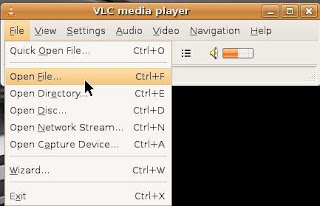
You will see a screen like below from where you choose the file you want to convert.
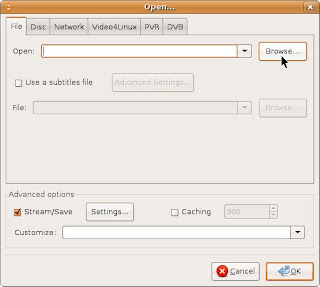
Once you select the video file you need to go down the screen and check the box that says
Stream/Save then click on the Settings button.
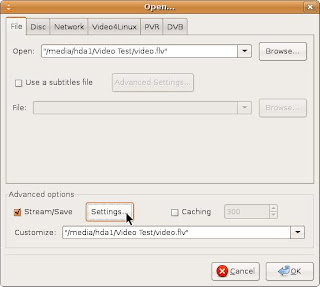
Now you get the screen that is your business screen.
First you need to check the box marked File.
Then click on Browse. You will browse to the folder where you want to save your converted video.
You will also be giving your converted video it's name with the extension.
IMPORTANT! You must add the extension to the name.
Example: I am converting the video Fun.flv to a mp2 mpeg so my new file name will be fun.mpeg
If you don't add the file extension to the end of your new file name it will convert the video into a random file and may not work.
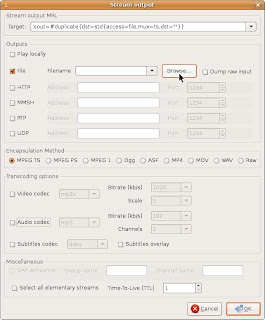
Here you can see my new video file with the .mpeg extension in the file name window.
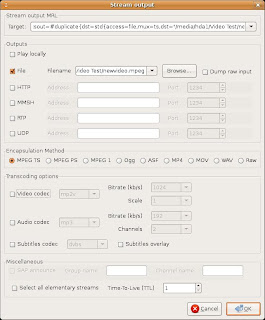
Now go down to the Encapsulation Method. I find that Video TS works the best.
Next click on the Video Codec box and from the drop box choose the video codec that matches the format you want to convert to.
The drop box looks like this;
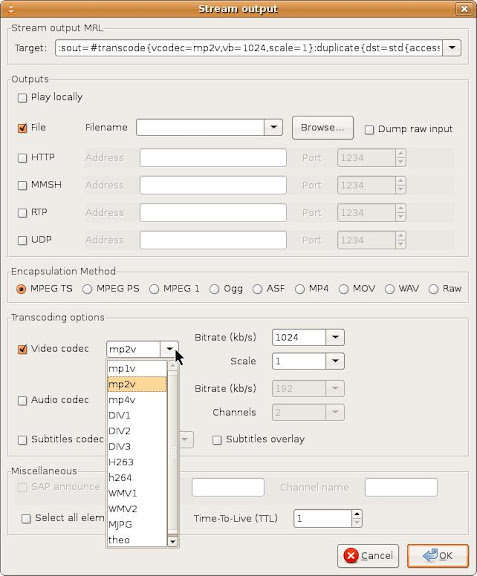
Also make sure the bitrate is set to 1024. Larger bitrates create larger video files.
Scale should be set to one.
Now click on the Audio Codec box and choose mp3 for stereo and set the Channels box to 2 and the bitrate for 192 to get a quality sound output.
You can also use the a52 codec for surround sound if your video is encoded with it. Make sure to set your Channels box to the appropriate number of audio tracks.
The screen will look like this;
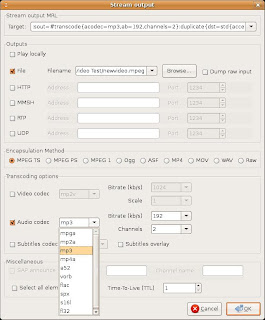
Now click on OK to continue.
You will now see this screen;
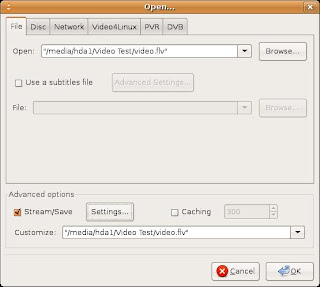
Make sure the video location entries match in the top and bottom boxes.
If they do click on OK.
Now you will see the VLC player position bar slide across as it recodes your video.
When it reaches the end your video is done.
Some final thoughts.
Many of my recoded videos are at a frame rate of 25 fps when I convert.
Also the video remains at the same resolution as the original.
I haven't played with the Scale settings. This may be the way you can enlarge your videos but be advised that too much scaling will cause pixielation. But I let that up to you, the readers, to investigate this setting.
So there you go! An easy way to convert videos to other formats.
Enjoy!
TaZMAn
There is a new easy to use tool that converts Videos and rips Audio.
It can be found in my blog here;
WinFF Blog Post
In one of my previous blog entries from May, I showed you how to extract audio from a video using VLC.
Now I will show you how to convert videos from one format to another.
Convert avi, DVD vob's, flv, ogg, wmv, divx, mpeg or mp4 for your iPod to any format just mentioned.
And it an easy process that only takes a few minutes to master and doesn't require the installing of several programs. The only thing you need is vlc and the needed codecs installed.
Ready? Let's go!
For you to be able to convert between all the different video formats requires you to have the following codecs installed.
First go to Medibuntu and follow the directions to install the non-free codecs. Here is the link to Medibuntu;
https://help.ubuntu.com/community/Medibuntu
Now from the Synaptic package manager make sure you have the following installed;
gstreamer0.10-plugins-ugly
gstreamer0.10-plugins-ugly-multiverse
gstreamer0.10-plugins-bad
gstreamer0.10-plugins-bad-multiverse
gstreamer0.10-ffmpeg
ffmpeg2theora
All the libavcodec files, w32codecs and all the libdivx files for decoding and encoding.
Once your satisfied that all the needed codecs are installed open up vlc and follow the instructions.
With vlc open go to File and click on Open File. Make sure you don't clcik on the Quick Open button by mistake.
You should see a screen like this;

You will see a screen like below from where you choose the file you want to convert.

Once you select the video file you need to go down the screen and check the box that says
Stream/Save then click on the Settings button.

Now you get the screen that is your business screen.
First you need to check the box marked File.
Then click on Browse. You will browse to the folder where you want to save your converted video.
You will also be giving your converted video it's name with the extension.
IMPORTANT! You must add the extension to the name.
Example: I am converting the video Fun.flv to a mp2 mpeg so my new file name will be fun.mpeg
If you don't add the file extension to the end of your new file name it will convert the video into a random file and may not work.

Here you can see my new video file with the .mpeg extension in the file name window.

Now go down to the Encapsulation Method. I find that Video TS works the best.
Next click on the Video Codec box and from the drop box choose the video codec that matches the format you want to convert to.
The drop box looks like this;
Also make sure the bitrate is set to 1024. Larger bitrates create larger video files.
Scale should be set to one.
Now click on the Audio Codec box and choose mp3 for stereo and set the Channels box to 2 and the bitrate for 192 to get a quality sound output.
You can also use the a52 codec for surround sound if your video is encoded with it. Make sure to set your Channels box to the appropriate number of audio tracks.
The screen will look like this;

Now click on OK to continue.
You will now see this screen;

Make sure the video location entries match in the top and bottom boxes.
If they do click on OK.
Now you will see the VLC player position bar slide across as it recodes your video.
When it reaches the end your video is done.
Some final thoughts.
Many of my recoded videos are at a frame rate of 25 fps when I convert.
Also the video remains at the same resolution as the original.
I haven't played with the Scale settings. This may be the way you can enlarge your videos but be advised that too much scaling will cause pixielation. But I let that up to you, the readers, to investigate this setting.
So there you go! An easy way to convert videos to other formats.
Enjoy!
TaZMAn
Tuesday, May 27, 2008
Rip Audio From FLV's Using VLC
Update!
There is a new easy to use tool that will rip audio from videos with a few clicks. Use in conjunction with the Download Helper add-on in the article below.
Link to my blog post for this new tool is;
WinFF Blog Post
If you go to Youtube or one of the many video sites I'm sure you have come across a video that you wanted only the audio from.
Before I give the details I'd highly recommend that you have the Download Helper add-on for Firefox installed. I consider it the best video downloader available. You can get it from here if you don't already have it;
http://www.downloadhelper.net/
Now that we have that out of the way, here is how to extract the audio from the FLV file you downloaded.
This method allows you to extract the audio using VLC graphical user interface. The mp3 file generated will also play in other media players like Winamp, Windows MP and Real:
1. Open the flv file with VLC and stop it as soon as it starts playing.
2. Open the VLC Wizard by clicking on File> Wizard…
3. Select Transcode/Save to File.
4. Select your file from the Playlist.
5. Check only the Transcode Audio checkmark, Leave Video unchecked). Select 192 KB BRate, and MP3 as the Audio codec.
6. Next select MPEG-1 for encapsulation method. Save the file with any name, but with the extension MPG.(Don’t use MP3 at this time). Press Finish.
Once the bar runs it course, repeat steps 1 through 6, except for: a) Choose the MPG file you just created as your input file, b) Change the encapsulation method as RAW and b) Save the new file with the extension MP3.
That's all there is to it. The total time is usually a minute or two depending on the file size and your computer's horse power.
Hope this helps you to grab the song from those music videos. (Grin!)
TaZMAn
There is a new easy to use tool that will rip audio from videos with a few clicks. Use in conjunction with the Download Helper add-on in the article below.
Link to my blog post for this new tool is;
WinFF Blog Post
If you go to Youtube or one of the many video sites I'm sure you have come across a video that you wanted only the audio from.
Before I give the details I'd highly recommend that you have the Download Helper add-on for Firefox installed. I consider it the best video downloader available. You can get it from here if you don't already have it;
http://www.downloadhelper.net/
Now that we have that out of the way, here is how to extract the audio from the FLV file you downloaded.
This method allows you to extract the audio using VLC graphical user interface. The mp3 file generated will also play in other media players like Winamp, Windows MP and Real:
1. Open the flv file with VLC and stop it as soon as it starts playing.
2. Open the VLC Wizard by clicking on File> Wizard…
3. Select Transcode/Save to File.
4. Select your file from the Playlist.
5. Check only the Transcode Audio checkmark, Leave Video unchecked). Select 192 KB BRate, and MP3 as the Audio codec.
6. Next select MPEG-1 for encapsulation method. Save the file with any name, but with the extension MPG.(Don’t use MP3 at this time). Press Finish.
Once the bar runs it course, repeat steps 1 through 6, except for: a) Choose the MPG file you just created as your input file, b) Change the encapsulation method as RAW and b) Save the new file with the extension MP3.
That's all there is to it. The total time is usually a minute or two depending on the file size and your computer's horse power.
Hope this helps you to grab the song from those music videos. (Grin!)
TaZMAn
Subscribe to:
Posts (Atom)

 Posts
Posts


