Recently a reader asked me a question about a missing codec error while using ffmpeg to convert a video.
Here's the error message;
It seems your FFMPEG (libavcodec) installation lacks the following encoder:
MPEG AAC Audio.
I initially told him to make sure he has the AAC audio codec installed. Then I tried a conversion and got a similar message. I know I had everything installed so it was time to investigate.
Didn't take me long to find out that the ffmpeg including the unstripped version from the restricted repo's is lacking certain codecs due to licensing B.S.
So what do we do?
I read many articles talking about compiling your own ffmpeg with the missing codecs. Now I'm not against doing that but I was hoping for something easier. LOL!
Then I found this page;
http://ubuntuforums.org/showthread.php?t=1117283
It has a comprehensive tutorial on how to compile your own ffmpeg.
And it also contains a quick 2 copy and paste terminal commands that will download and install the unstripped ffmpeg.
Just make sure that you pick your correct version of Ubuntu when using either option.
Many thanks to FakeOutdoorsman for his excellent tutorial on fixing this.
Linux!
There are so many ways around the B.S!
Enjoy!
Showing posts with label Codec. Show all posts
Showing posts with label Codec. Show all posts
Monday, May 31, 2010


Tuesday, October 28, 2008
Convert Video With VLC
UPDATE!
There is a new easy to use tool that converts Videos and rips Audio.
It can be found in my blog here;
WinFF Blog Post
In one of my previous blog entries from May, I showed you how to extract audio from a video using VLC.
Now I will show you how to convert videos from one format to another.
Convert avi, DVD vob's, flv, ogg, wmv, divx, mpeg or mp4 for your iPod to any format just mentioned.
And it an easy process that only takes a few minutes to master and doesn't require the installing of several programs. The only thing you need is vlc and the needed codecs installed.
Ready? Let's go!
For you to be able to convert between all the different video formats requires you to have the following codecs installed.
First go to Medibuntu and follow the directions to install the non-free codecs. Here is the link to Medibuntu;
https://help.ubuntu.com/community/Medibuntu
Now from the Synaptic package manager make sure you have the following installed;
gstreamer0.10-plugins-ugly
gstreamer0.10-plugins-ugly-multiverse
gstreamer0.10-plugins-bad
gstreamer0.10-plugins-bad-multiverse
gstreamer0.10-ffmpeg
ffmpeg2theora
All the libavcodec files, w32codecs and all the libdivx files for decoding and encoding.
Once your satisfied that all the needed codecs are installed open up vlc and follow the instructions.
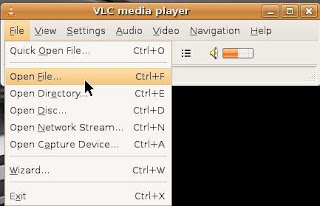
With vlc open go to File and click on Open File. Make sure you don't clcik on the Quick Open button by mistake.
You should see a screen like this;
You will see a screen like below from where you choose the file you want to convert.
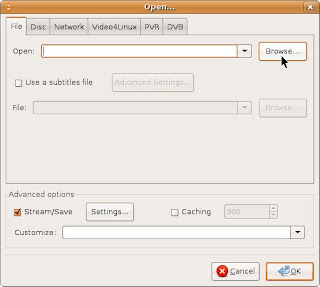
Once you select the video file you need to go down the screen and check the box that says
Stream/Save then click on the Settings button.
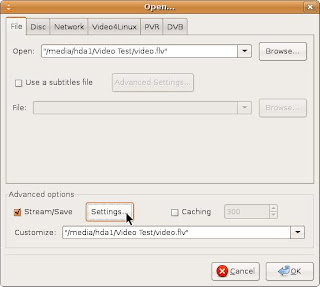
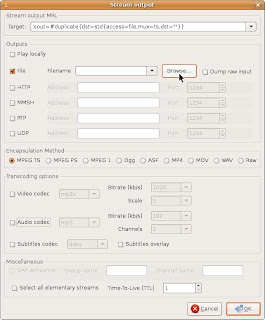
Now you get the screen that is your business screen.
First you need to check the box marked File.
Then click on Browse. You will browse to the folder where you want to save your converted video.
You will also be giving your converted video it's name with the extension.
IMPORTANT! You must add the extension to the name.
Example: I am converting the video Fun.flv to a mp2 mpeg so my new file name will be fun.mpeg
If you don't add the file extension to the end of your new file name it will convert the video into a random file and may not work.
Here you can see my new video file with the .mpeg extension in the file name window.
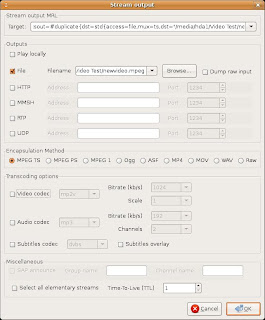
Now go down to the Encapsulation Method. I find that Video TS works the best.
Next click on the Video Codec box and from the drop box choose the video codec that matches the format you want to convert to.
The drop box looks like this;
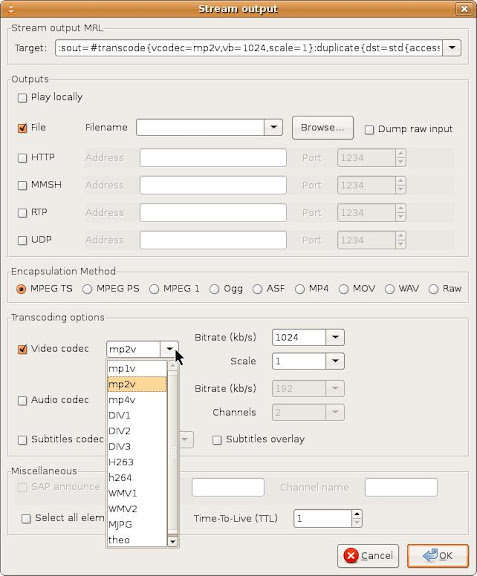
Also make sure the bitrate is set to 1024. Larger bitrates create larger video files.
Scale should be set to one.
Now click on the Audio Codec box and choose mp3 for stereo and set the Channels box to 2 and the bitrate for 192 to get a quality sound output.
You can also use the a52 codec for surround sound if your video is encoded with it. Make sure to set your Channels box to the appropriate number of audio tracks.
The screen will look like this;
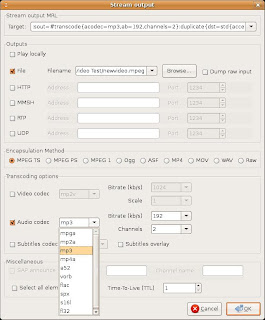
Now click on OK to continue.
You will now see this screen;
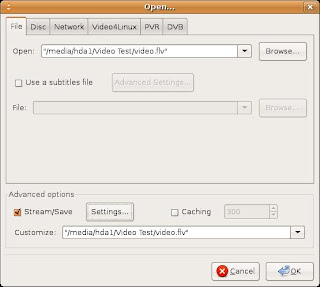
Make sure the video location entries match in the top and bottom boxes.
If they do click on OK.
Now you will see the VLC player position bar slide across as it recodes your video.
When it reaches the end your video is done.
Some final thoughts.
Many of my recoded videos are at a frame rate of 25 fps when I convert.
Also the video remains at the same resolution as the original.
I haven't played with the Scale settings. This may be the way you can enlarge your videos but be advised that too much scaling will cause pixielation. But I let that up to you, the readers, to investigate this setting.
So there you go! An easy way to convert videos to other formats.
Enjoy!
TaZMAn
There is a new easy to use tool that converts Videos and rips Audio.
It can be found in my blog here;
WinFF Blog Post
In one of my previous blog entries from May, I showed you how to extract audio from a video using VLC.
Now I will show you how to convert videos from one format to another.
Convert avi, DVD vob's, flv, ogg, wmv, divx, mpeg or mp4 for your iPod to any format just mentioned.
And it an easy process that only takes a few minutes to master and doesn't require the installing of several programs. The only thing you need is vlc and the needed codecs installed.
Ready? Let's go!
For you to be able to convert between all the different video formats requires you to have the following codecs installed.
First go to Medibuntu and follow the directions to install the non-free codecs. Here is the link to Medibuntu;
https://help.ubuntu.com/community/Medibuntu
Now from the Synaptic package manager make sure you have the following installed;
gstreamer0.10-plugins-ugly
gstreamer0.10-plugins-ugly-multiverse
gstreamer0.10-plugins-bad
gstreamer0.10-plugins-bad-multiverse
gstreamer0.10-ffmpeg
ffmpeg2theora
All the libavcodec files, w32codecs and all the libdivx files for decoding and encoding.
Once your satisfied that all the needed codecs are installed open up vlc and follow the instructions.
With vlc open go to File and click on Open File. Make sure you don't clcik on the Quick Open button by mistake.
You should see a screen like this;

You will see a screen like below from where you choose the file you want to convert.

Once you select the video file you need to go down the screen and check the box that says
Stream/Save then click on the Settings button.

Now you get the screen that is your business screen.
First you need to check the box marked File.
Then click on Browse. You will browse to the folder where you want to save your converted video.
You will also be giving your converted video it's name with the extension.
IMPORTANT! You must add the extension to the name.
Example: I am converting the video Fun.flv to a mp2 mpeg so my new file name will be fun.mpeg
If you don't add the file extension to the end of your new file name it will convert the video into a random file and may not work.

Here you can see my new video file with the .mpeg extension in the file name window.

Now go down to the Encapsulation Method. I find that Video TS works the best.
Next click on the Video Codec box and from the drop box choose the video codec that matches the format you want to convert to.
The drop box looks like this;
Also make sure the bitrate is set to 1024. Larger bitrates create larger video files.
Scale should be set to one.
Now click on the Audio Codec box and choose mp3 for stereo and set the Channels box to 2 and the bitrate for 192 to get a quality sound output.
You can also use the a52 codec for surround sound if your video is encoded with it. Make sure to set your Channels box to the appropriate number of audio tracks.
The screen will look like this;

Now click on OK to continue.
You will now see this screen;

Make sure the video location entries match in the top and bottom boxes.
If they do click on OK.
Now you will see the VLC player position bar slide across as it recodes your video.
When it reaches the end your video is done.
Some final thoughts.
Many of my recoded videos are at a frame rate of 25 fps when I convert.
Also the video remains at the same resolution as the original.
I haven't played with the Scale settings. This may be the way you can enlarge your videos but be advised that too much scaling will cause pixielation. But I let that up to you, the readers, to investigate this setting.
So there you go! An easy way to convert videos to other formats.
Enjoy!
TaZMAn
Thursday, October 23, 2008
Audacious Media Player Waste of Time
With XMMS going by the wayside as in no more development I decided to see what was available as a replacement in my Gutsy system.
A quick Google search presents me with a media player going by the name Audacious. That name couldn't be a better fit. And I need to point out that you should not confuse this program with Audacity which is a very good audio editor in it's own right.
I open up the Synaptic Package Manager and do a search for Audacious. Mark the main package and try to mark the plug-ins but it's not going to happen. When I marked the main package for installation it popped up an error that said it can't be installed because the plug-ins aren't going to be installed. HUH!!!
I'm trying to mark the plug-ins but the main package error prevents me from adding them on.
So I try marking the plug-ins first. Same problem. I get an error message that the main program isn't going to be installed so the plug-ins can't be installed.
This is NUTS!!!
Alright then. I'll go to their website and see what's going on. I click on the link for their site from a Google search and am presented with a page that says "It Works!"
That's nice. Maybe that page works but the software package sure doesn't. I'm getting this bad feeling. Packages are messed up and the website is down.
Okay! I'll go and grab the .deb packages. Download them and when I try to install them I get the same errors as I did in Synaptic.
GRR....!!!!!!
Okay! Sigh! I'll grab the source code and compile it from there. So I grab the base and plug-in source code and get to work.
Dependency errors! Drat! Or should I say error because it said I was missing one file.
Go and grab the source for that file, compile and install it.
Back to the main package. Another dependency error. After about 5 of these I finally get the main package installed.
Next I install the 3 plug-in packages and thankfully they go much easier.
Now I open up Audacious and it looks suspiciously similar to XMMS even though the developers have said in many articles that they are trying to design a media player that is not a continuation of XMMS and will stand on it's own merit.
I open the file browser and tell Audacious to open an Mp3 file.
ERROR! Either the file permissions are not set properly or you don't have the proper codec installed.
I check to see what plug-ins I have installed. There is a whole list of them but no where do I see one for playing Mp3's. I check on a few forums and apparently that plug-in should be either in the base or dev plug-in package.
So I reinstall the plug-in packages. Still no luck. I go online to see if I can find any other info. Plenty of people posting about problems opening Mp3 files but no real solutions other then to make sure the plug-in packages were installed.
That's when I made my decision. Sudo apt-get remove audacious and all the plug-ins.
I knew this package was a bad omen when I had problems installing through Synaptic and found a dead website.
I'll stick with VLC. It has some quirks but the additional features like audio ripping and video conversion more then make up for those few minor annoyances.
And I have to really wonder what direction Audacious will really take.
Broken .deb packages and websites that are down do not paint a rosey picture for it's future.
I know it left a very bad taste in my mouth and it will take the Audacious developers a lot of work and plenty of add on features for me to even take a look at it again.
In retrospect I did get a good refresher course on compiling and installing from a source package and I honed my skills on finding missing dependency packages.
But the time wasted on a software product of shoddy construction was time I could have used on better things.
TaZMAn
A quick Google search presents me with a media player going by the name Audacious. That name couldn't be a better fit. And I need to point out that you should not confuse this program with Audacity which is a very good audio editor in it's own right.
I open up the Synaptic Package Manager and do a search for Audacious. Mark the main package and try to mark the plug-ins but it's not going to happen. When I marked the main package for installation it popped up an error that said it can't be installed because the plug-ins aren't going to be installed. HUH!!!
I'm trying to mark the plug-ins but the main package error prevents me from adding them on.
So I try marking the plug-ins first. Same problem. I get an error message that the main program isn't going to be installed so the plug-ins can't be installed.
This is NUTS!!!
Alright then. I'll go to their website and see what's going on. I click on the link for their site from a Google search and am presented with a page that says "It Works!"
That's nice. Maybe that page works but the software package sure doesn't. I'm getting this bad feeling. Packages are messed up and the website is down.
Okay! I'll go and grab the .deb packages. Download them and when I try to install them I get the same errors as I did in Synaptic.
GRR....!!!!!!
Okay! Sigh! I'll grab the source code and compile it from there. So I grab the base and plug-in source code and get to work.
Dependency errors! Drat! Or should I say error because it said I was missing one file.
Go and grab the source for that file, compile and install it.
Back to the main package. Another dependency error. After about 5 of these I finally get the main package installed.
Next I install the 3 plug-in packages and thankfully they go much easier.
Now I open up Audacious and it looks suspiciously similar to XMMS even though the developers have said in many articles that they are trying to design a media player that is not a continuation of XMMS and will stand on it's own merit.
I open the file browser and tell Audacious to open an Mp3 file.
ERROR! Either the file permissions are not set properly or you don't have the proper codec installed.
I check to see what plug-ins I have installed. There is a whole list of them but no where do I see one for playing Mp3's. I check on a few forums and apparently that plug-in should be either in the base or dev plug-in package.
So I reinstall the plug-in packages. Still no luck. I go online to see if I can find any other info. Plenty of people posting about problems opening Mp3 files but no real solutions other then to make sure the plug-in packages were installed.
That's when I made my decision. Sudo apt-get remove audacious and all the plug-ins.
I knew this package was a bad omen when I had problems installing through Synaptic and found a dead website.
I'll stick with VLC. It has some quirks but the additional features like audio ripping and video conversion more then make up for those few minor annoyances.
And I have to really wonder what direction Audacious will really take.
Broken .deb packages and websites that are down do not paint a rosey picture for it's future.
I know it left a very bad taste in my mouth and it will take the Audacious developers a lot of work and plenty of add on features for me to even take a look at it again.
In retrospect I did get a good refresher course on compiling and installing from a source package and I honed my skills on finding missing dependency packages.
But the time wasted on a software product of shoddy construction was time I could have used on better things.
TaZMAn
Subscribe to:
Posts (Atom)

 Posts
Posts


